
Smart Navigation History

Smart Navigation History

Easily return to any page you’ve previously viewed — perfect for reviewing multiple hits or comparing results.

  • One-Click Return: Jump back to any page instantly with a single click.
  • History Tracking: Keep track of your search journey automatically.
Contextual Search Preview

Contextual Search Preview

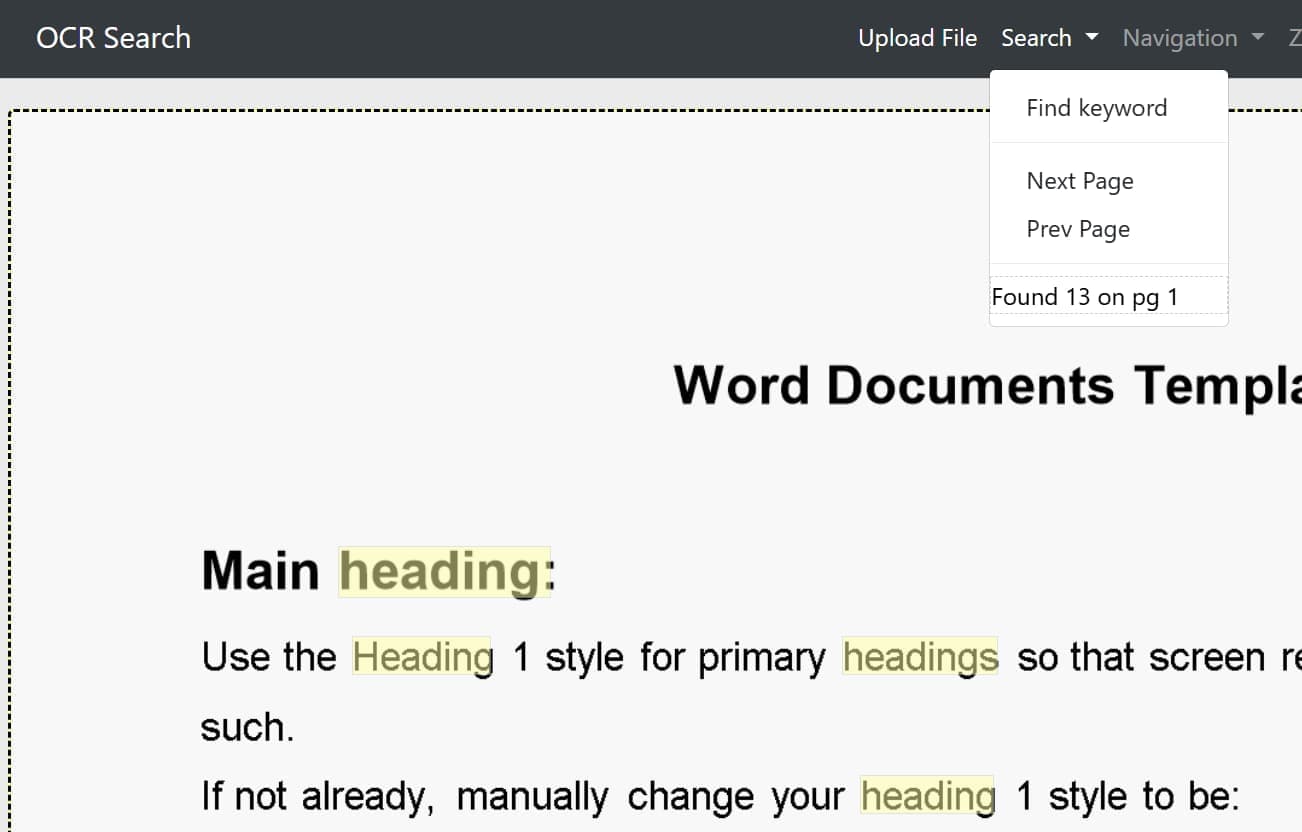
See search results in context before you click. The sidebar preview shows snippets of text around your keyword, helping you find the right result faster.

  • Context Snippets: View surrounding text for every search hit.
  • Keyword Highlighting: Highlight keywords directly in the preview pane.
Advanced Search Modes

Advanced Search Modes

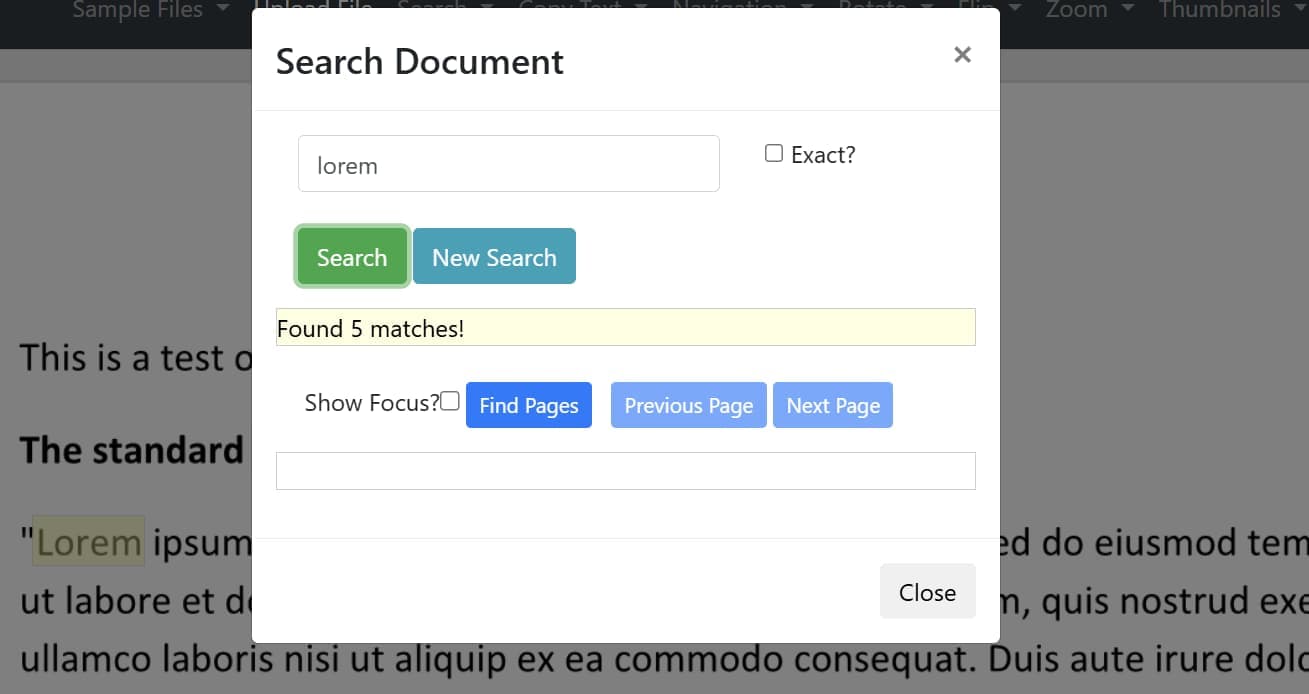
Whether you need a quick keyword lookup or a complex phrase match, Doconut Search handles it all with sub-second speed.

  • Keyword & Phrase: Find exact words or partial matches instantly.
  • High Performance: Search across hundreds of pages in milliseconds.

Search plugin licensing

Choose a plan that fits your project — all licenses include updates and technical support.

👨‍💻

Developer

$99

Single developer, one domain & all subdomains.

Buy Now
🏢

Site

$149

Multiple domains owned by one organization.

Buy Now
⚙️

SDK

$199

Redistribution and multi-client environments.

Buy Now

Questions about full-text search

What the Search plugin finds, and what a document needs to be searchable.

How do I add full-text search in a document viewer with ASP.NET Core?

Enable the Search license capability, include the Viewer and Search resources, and attach the Search Ribbon to your initialized viewer. This adds full-text search in a document viewer with controls for finding text, clearing results, showing match counts and moving between matches. Search uses text extracted by the format viewer.

Read the documentation

Can I search inside PDF and Office files with Doconut?

Yes, Doconut can search inside PDF and Office files using their available text. Enable AllowSearch in PdfConfig, WordConfig, ExcelConfig or PptConfig when opening the document; it defaults to false. Native search supports PDF, Word, Excel and PowerPoint. A document still needs usable text to produce matches.

Try it in the live demo

How do I highlight matches and navigate document search results?

Use the viewer's Search method to find text and highlight matches, then read the result count from its callback. SearchSummary(true) paints page and thumbnail highlights, and GotoSearchMatch(index) navigates to an individual match. The Search Ribbon also handles match counts, clearing results and previous or next match navigation.

Read the documentation

Why does PDF search return no matches when CanSearch is true?

Search can return zero matches when a document has no usable text, even if CanSearch() reports true. That method describes the viewer's search capability rather than guaranteeing document content. A PDF containing only scanned page images can therefore return no native results. Search also requires the Search license capability.

Read the documentation

Try, build, buy

See it working before you install anything

Find every clause, name or number in a long document and jump straight to it. Try it on a sample service agreement.

The live demo runs on sample documents. No sign-up, no install.

Add it to your project

Start with the NuGet package, then follow the setup guide for your framework.

dotnet add package Doconut.NET8
Read the setup guide